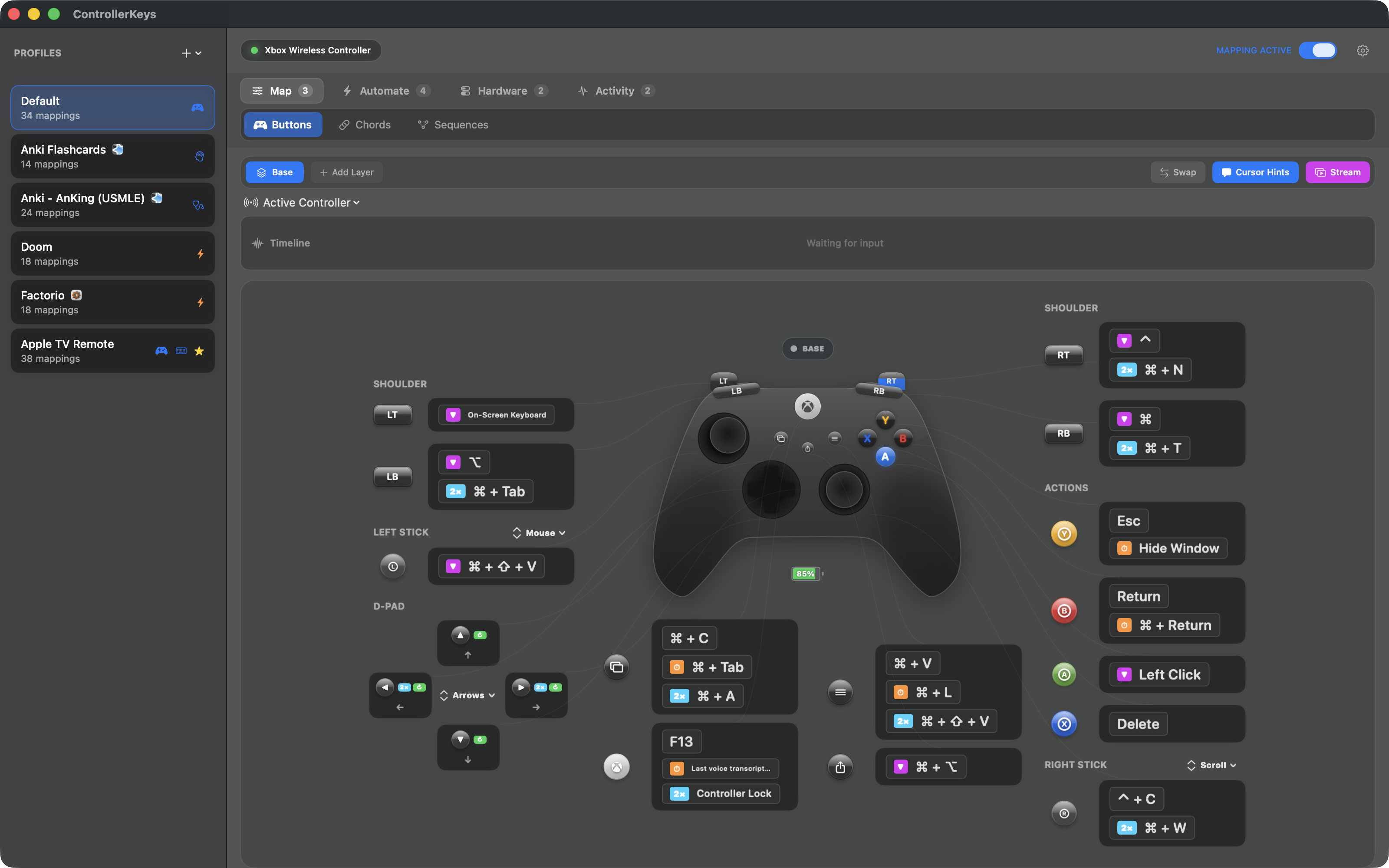
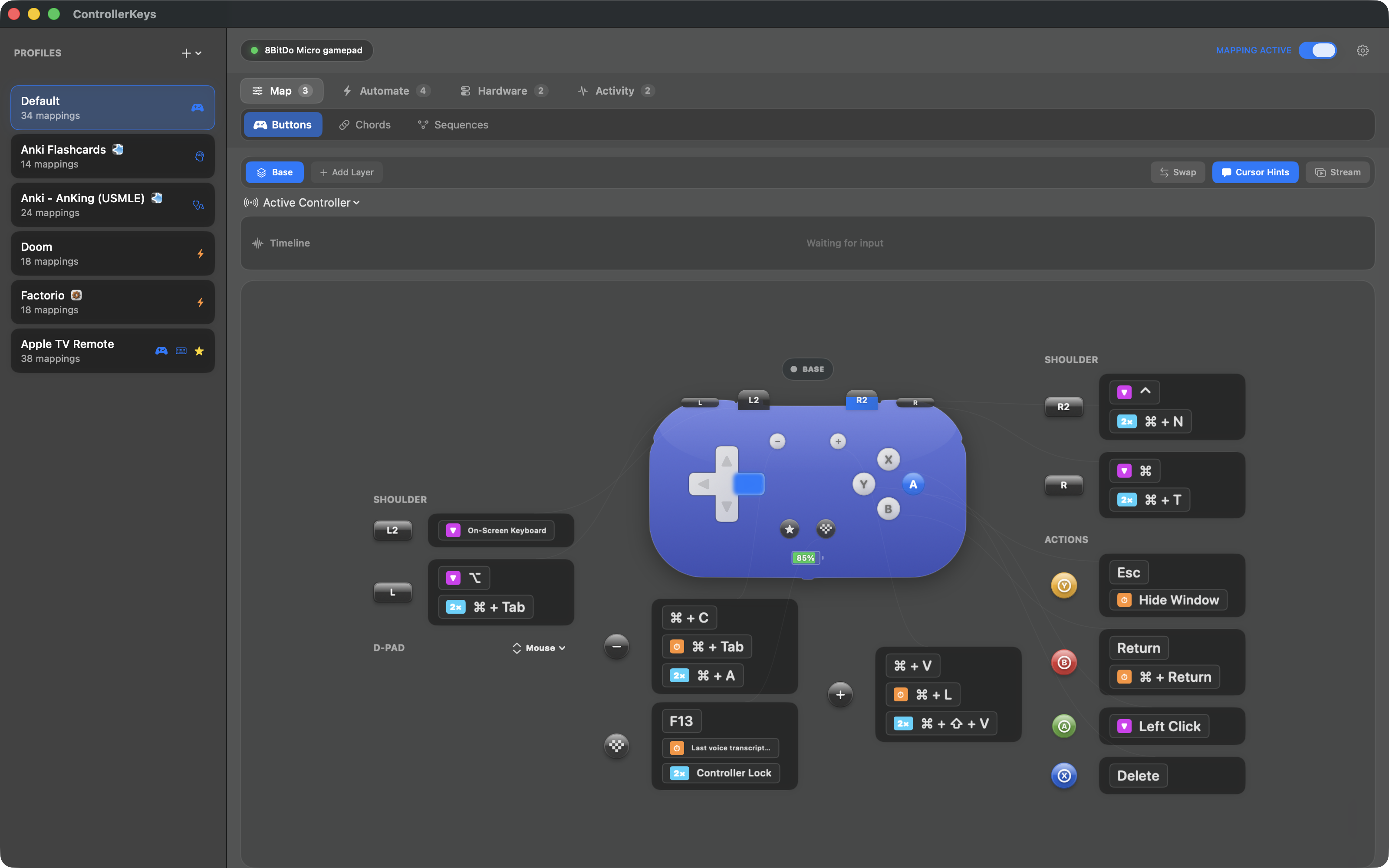
⌨️ Button Mapping
| Type |
Description |
| Simple Key |
Single keystroke per press |
| Modifier + Key |
Like ⌘C |
| Hold Modifier |
Hold button = hold modifier |
| Long Hold |
Different action on long press |
| Double Tap |
Quick double press trigger |
| Repeat |
Auto-repeat while holding |
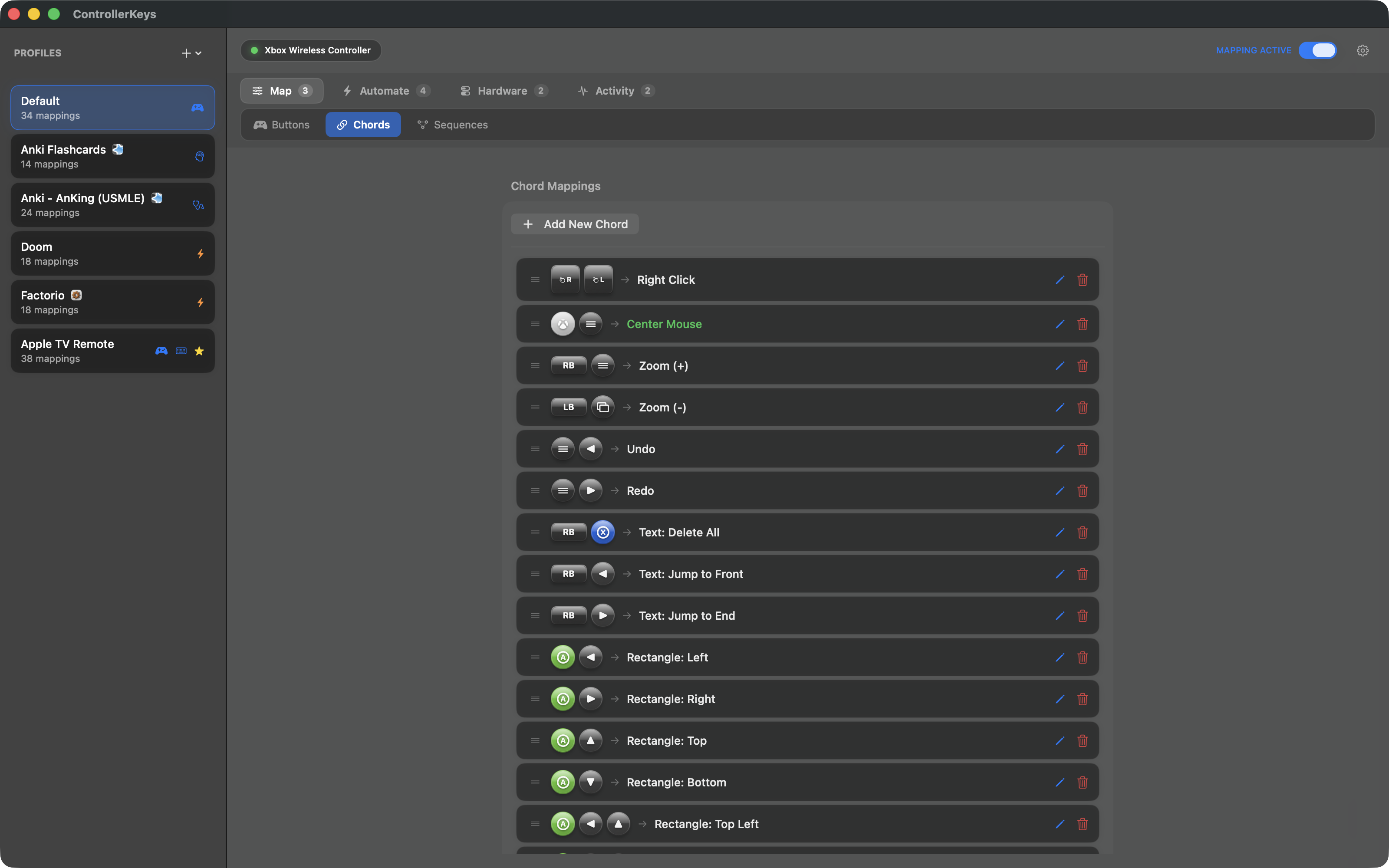
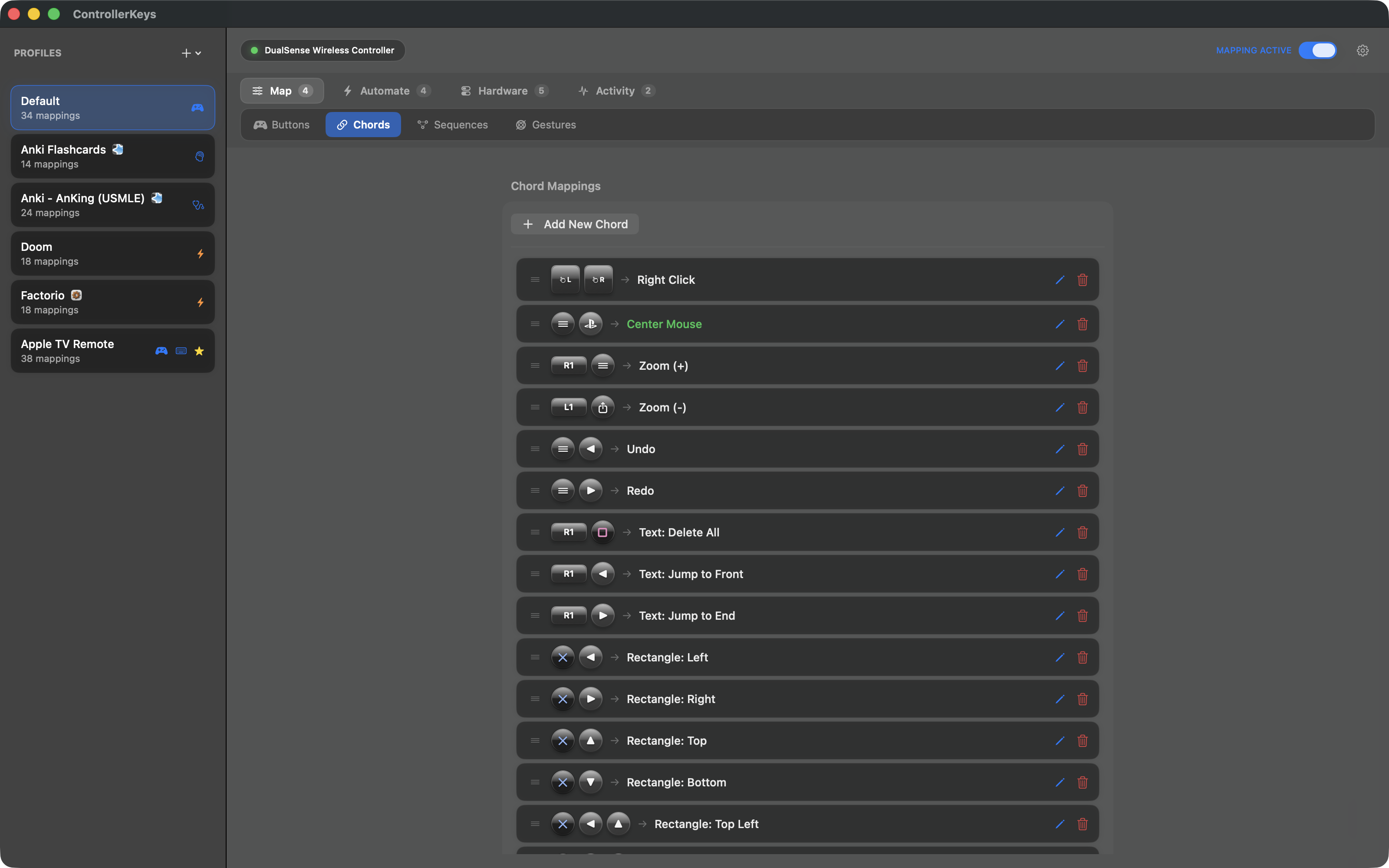
🔗 Chord Mappings
Press multiple buttons for one action. Fully customizable — create your own combinations.
🔢 Button Sequences
Trigger actions with ordered button combos — like cheat codes
Up
Up
Down
Down
→
Run script
- Zero-latency detection
- Configurable step timeout
- Assign to keys, macros, scripts, or system commands
📚 Layers
Hold a button to unlock an entirely different set of mappings — like Shift on a keyboard
- Up to 12 additional mapping layers per profile
- Hold any button to activate a layer
- Unmapped buttons fall through to base
- Multiply your available shortcuts
Example: Hold LB to turn A/B/X/Y into app launchers, D-pad into media controls.
📜 JavaScript Scripting
Write custom automation scripts powered by JavaScriptCore
press(), hold(), click(), type(), paste(), delay()shell(), openURL(), openApp(), notify(), haptic()- App-aware:
app.name, app.bundleId, app.is()
- Trigger context:
trigger.button, trigger.pressType
screenshotWindow() API for window capture- Per-script persistent state across invocations
- Built-in example gallery with ready-to-use scripts
- Script editor with syntax reference and AI prompt assistant
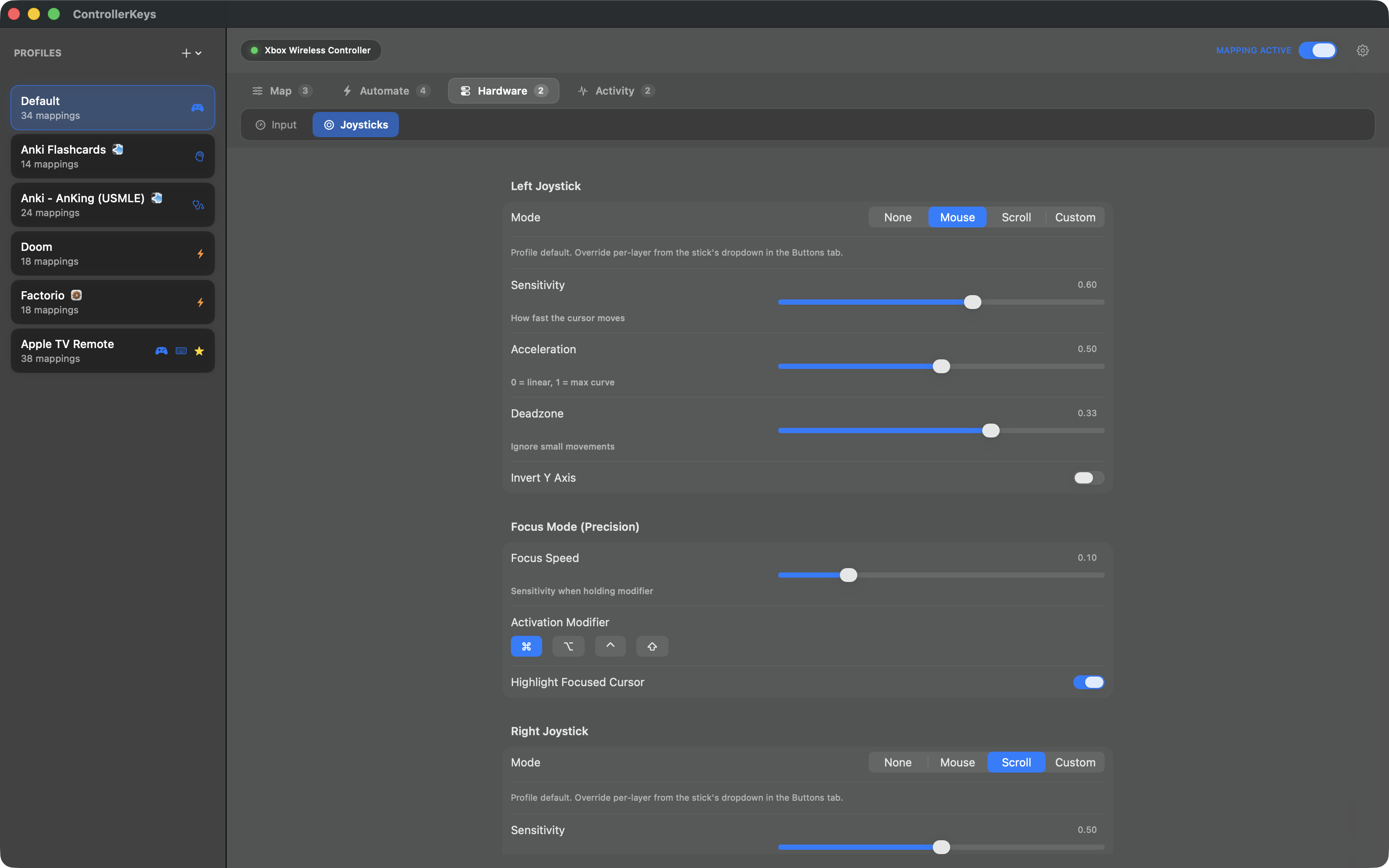
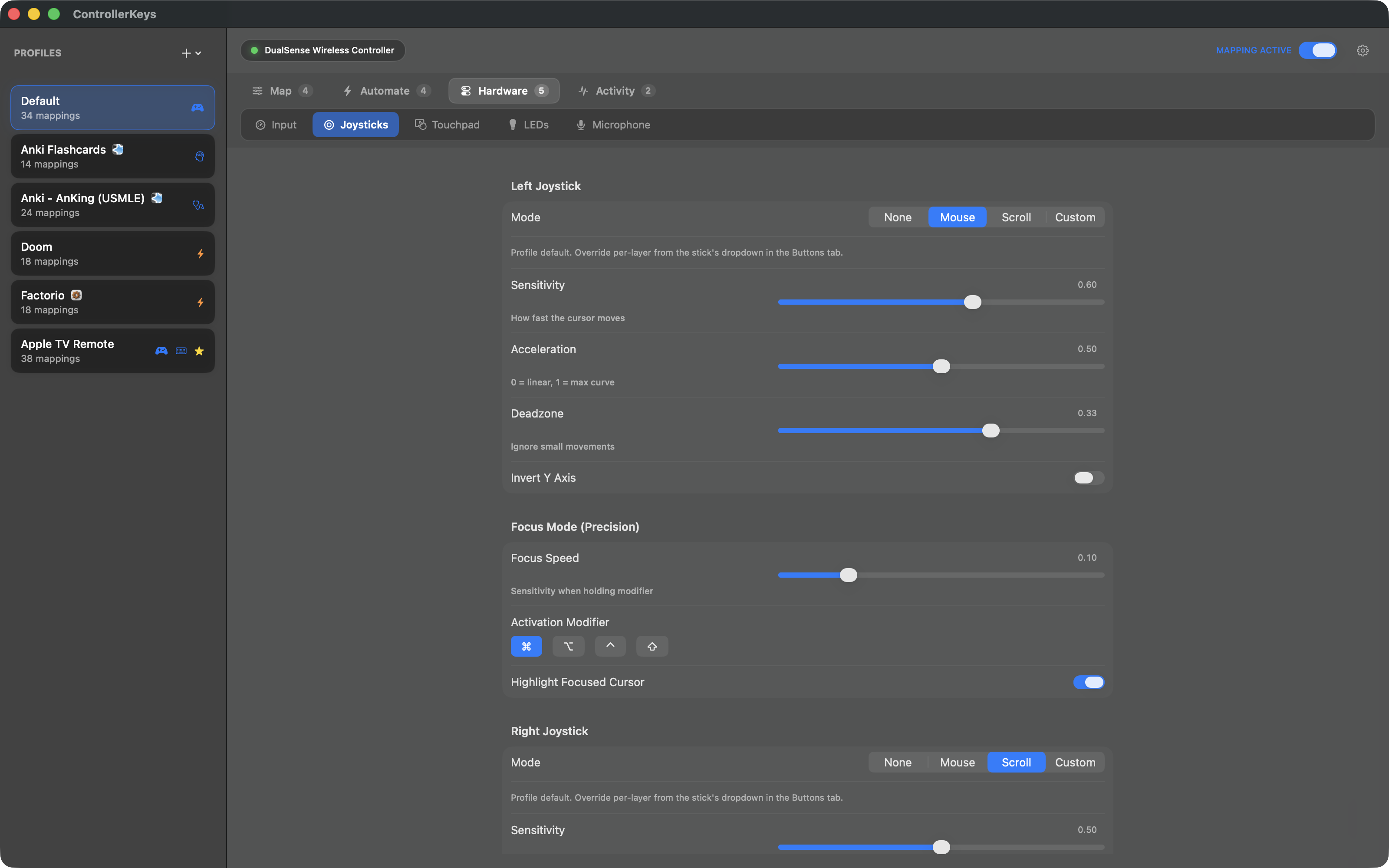
🕹️ Joystick Control
Right Stick
Scroll or Arrows
- Mouse, WASD, Arrow, or disabled per stick
- Adjustable sensitivity & deadzone
- Focus mode for precision with cursor highlight
- Acceleration curves and invert Y-axis
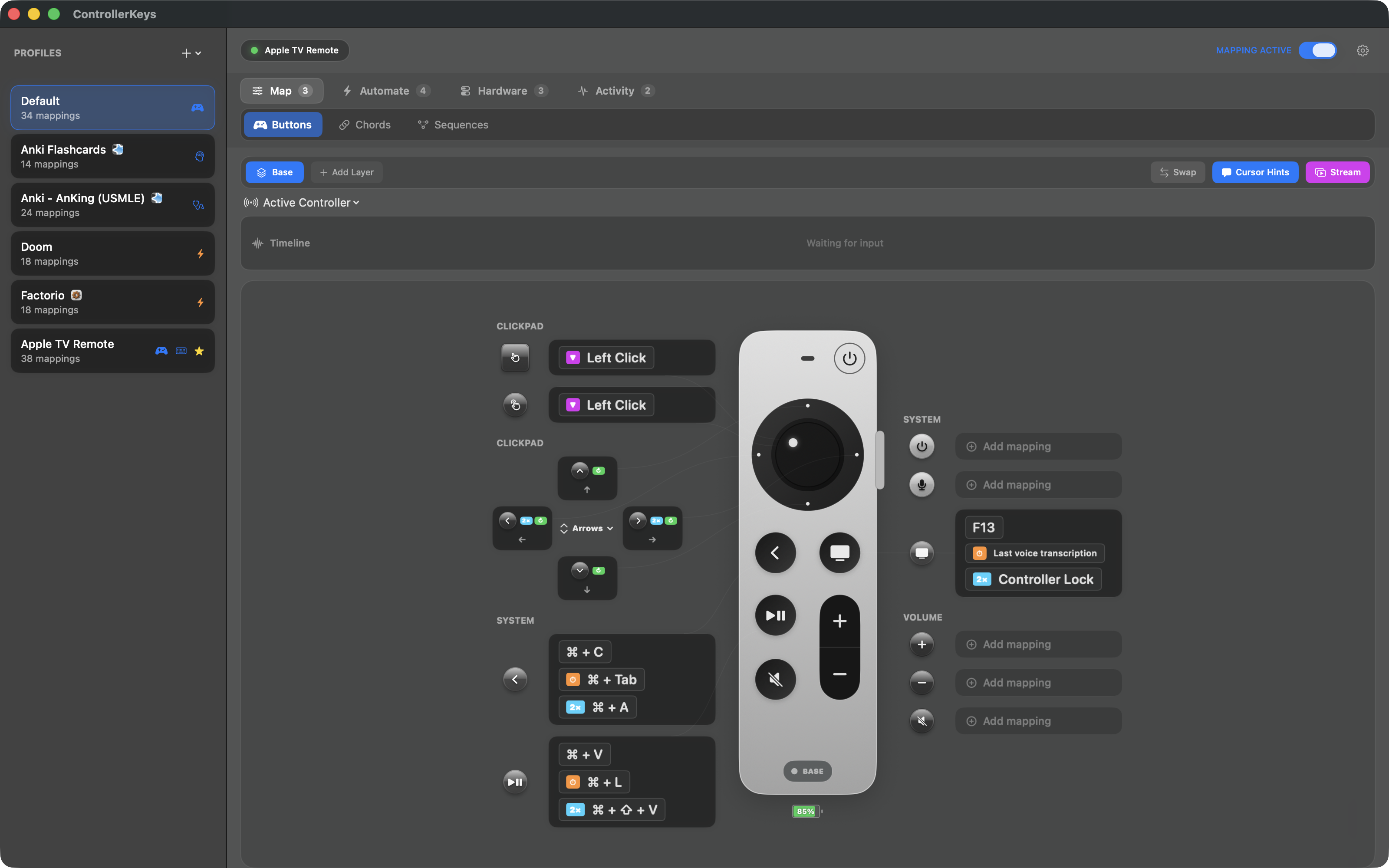
📺 Apple TV Siri Remote
Pair the Siri Remote over Bluetooth and use it as a tiny Mac remote — no Apple TV required
- Clickpad moves the cursor; press to click
- Edge Scroll: circle the outer ring like an iPod wheel
- D-pad ring maps to four directions
- TV, Back, Play/Pause, Siri, Power, Mute, and volume all mappable
- Dedicated remote preview in the app
🎯 Command Wheel
GTA-inspired radial menu for instant app and website switching
- Hold button to show, use right stick to select
- Haptic feedback as you navigate
- Push stick all the way to force quit or open new window
- Hold modifier for alternate content (apps vs websites)
- Long-hold on websites for incognito mode
🎯 Gyro Aiming & Gestures
Use the DualSense or DualShock 4 gyroscope for precise mouse control and gesture-triggered actions
- Gyro aiming in focus mode for precision mouse control
- 1-Euro filter for jitter-free, responsive tracking
- Tilt forward/back and steer left/right gesture mappings
- Per-profile sensitivity and cooldown sliders
- Configurable deadzone and cubic sensitivity curve
🌐 HTTP Webhooks
Send HTTP requests from controller buttons — trigger smart home, APIs, or custom integrations
- GET, POST, PUT, DELETE, and PATCH methods
- Configurable headers and request body
- Visual feedback showing response status above cursor
- Haptic feedback on success or failure
👤 Profiles
Multiple configurations with smart switching
- Unlimited profiles with custom icons
- Auto-switch profiles based on active app
- Import community profiles from GitHub
- Import Stream Deck V2 profiles
- Quick switch from menu bar
- Export & share your configs
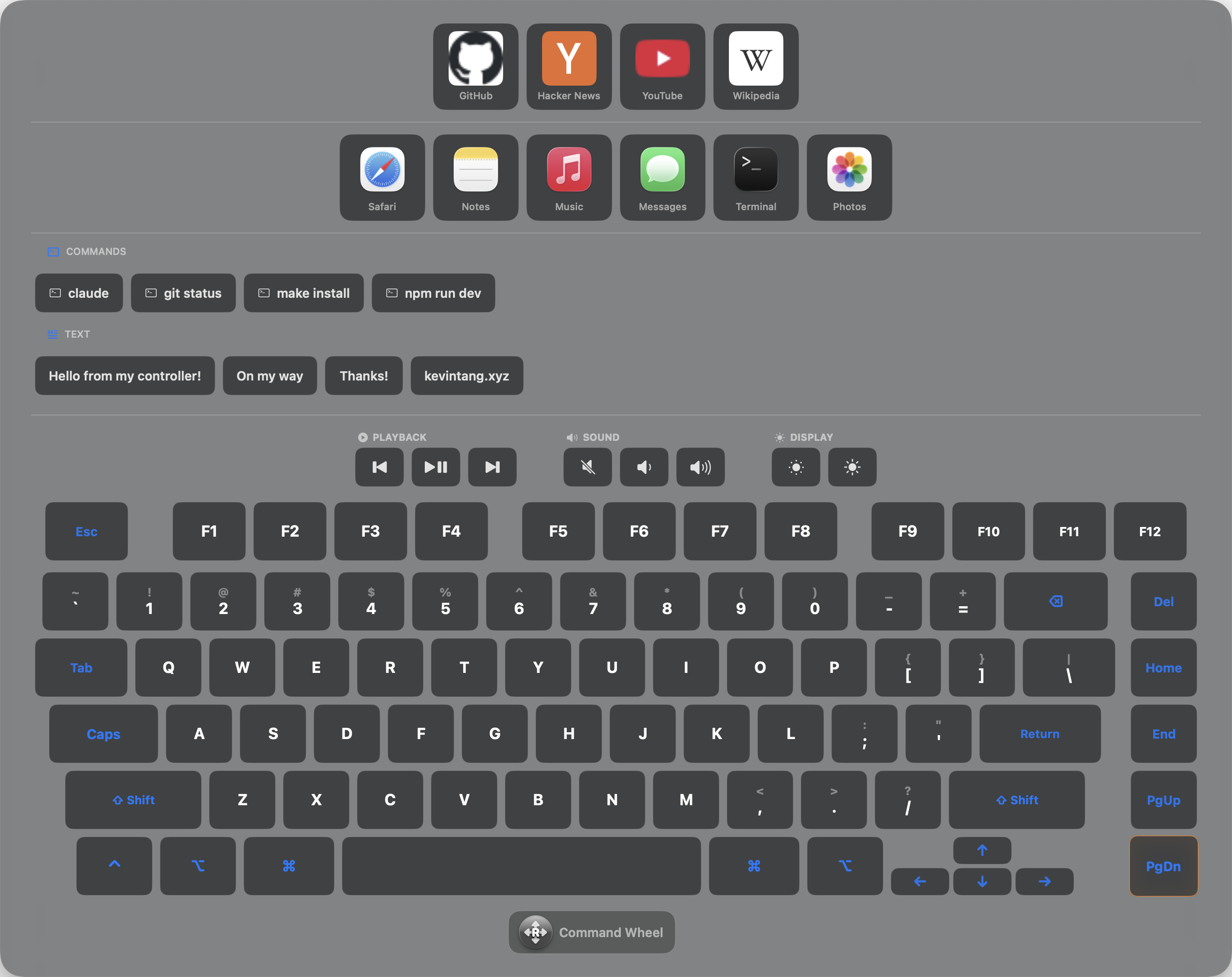
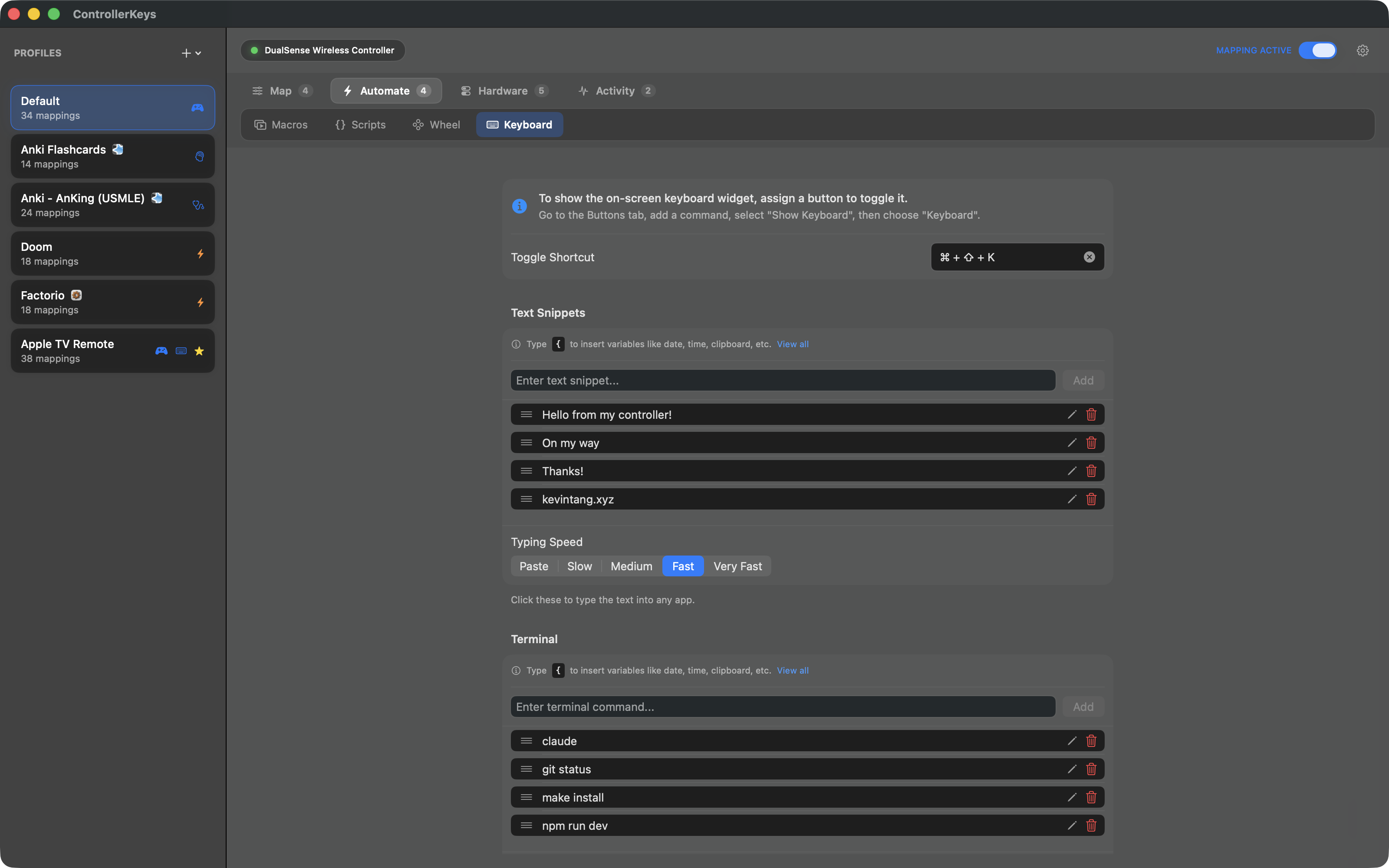
⌨️ On-Screen Keyboard
A full keyboard and app launcher with swipe typing
- Swipe typing — slide across letters to type words
- Navigate with D-pad or joystick
- App bar for quick app switching
- Website links with favicons
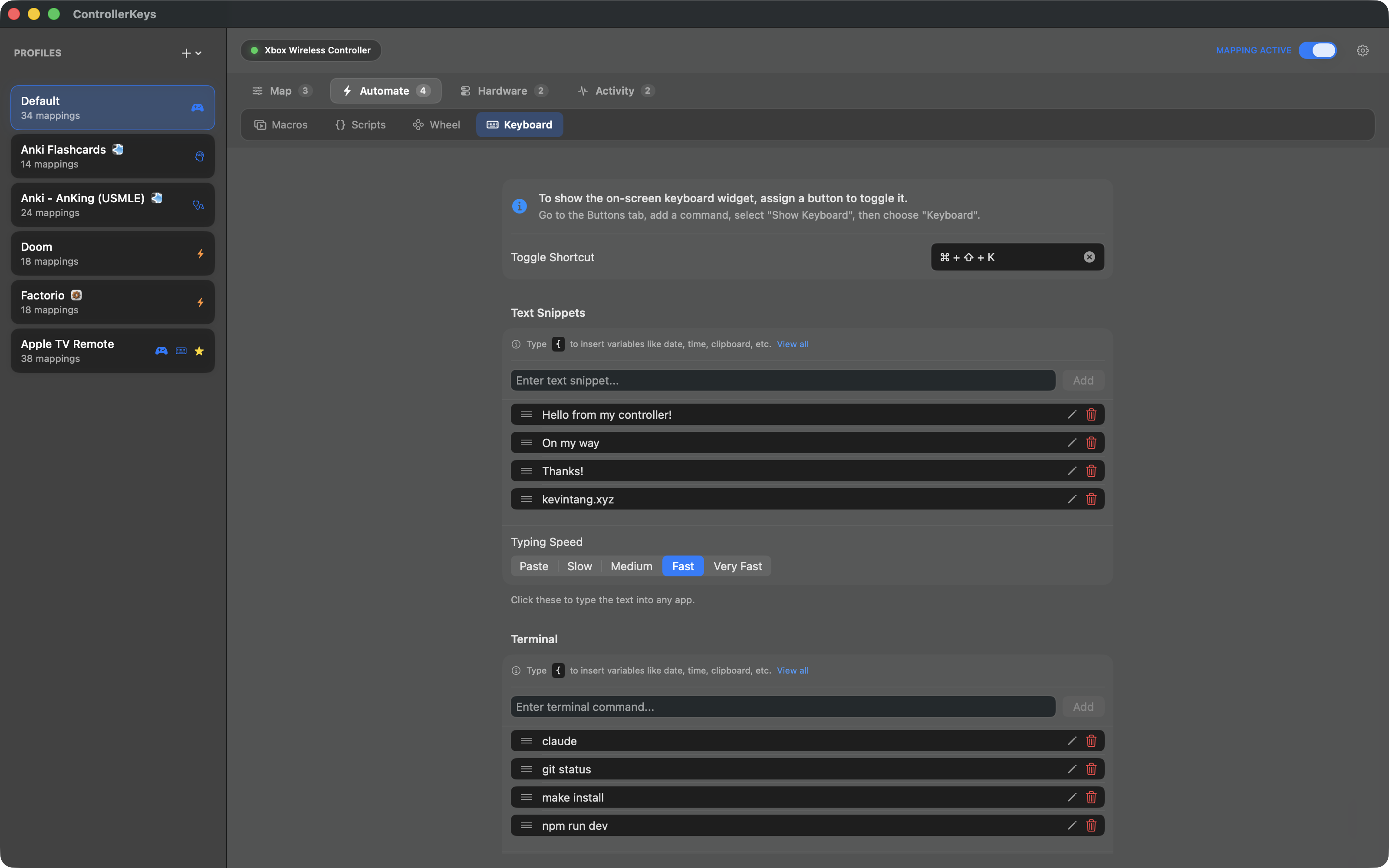
- Saved text snippets and terminal commands
- Media keys for playback and volume
- Auto-scaling to fit smaller displays
🔄 Macros
Record multi-step sequences and play them back with one button
- Key Press, Type Text, Delay, and Paste steps
- Shell Command, Webhook, and OBS steps
- Configurable typing speed or instant paste
- Assign to buttons, chords, long hold, or double tap
📋 System Commands
Automate beyond key presses
- Launch any app with one button
- Run shell commands (silent or in terminal)
- Open URLs in your browser
- Insert text snippets with variables
Variables: Use {date}, {time}, {clipboard}, and more in your text.
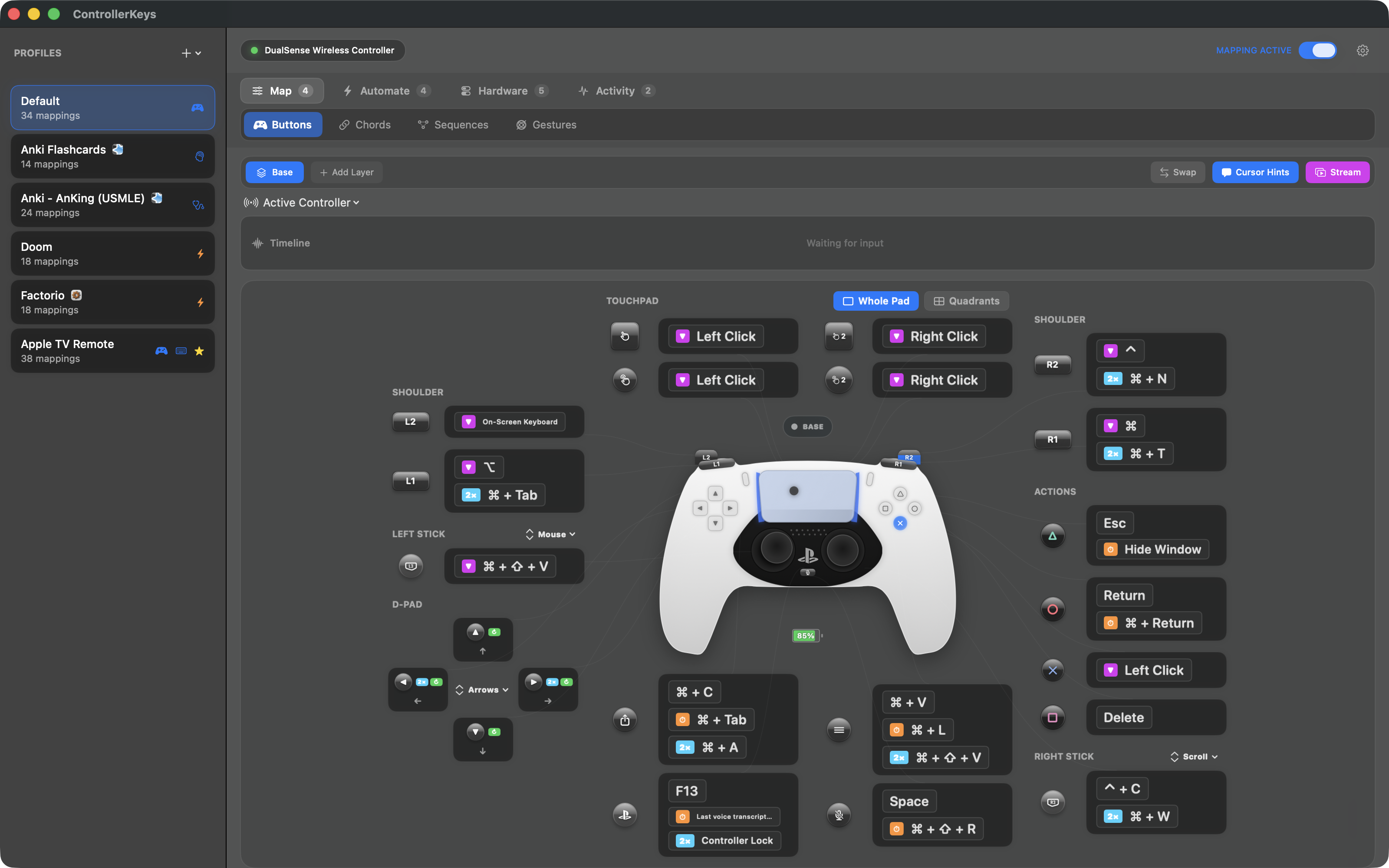
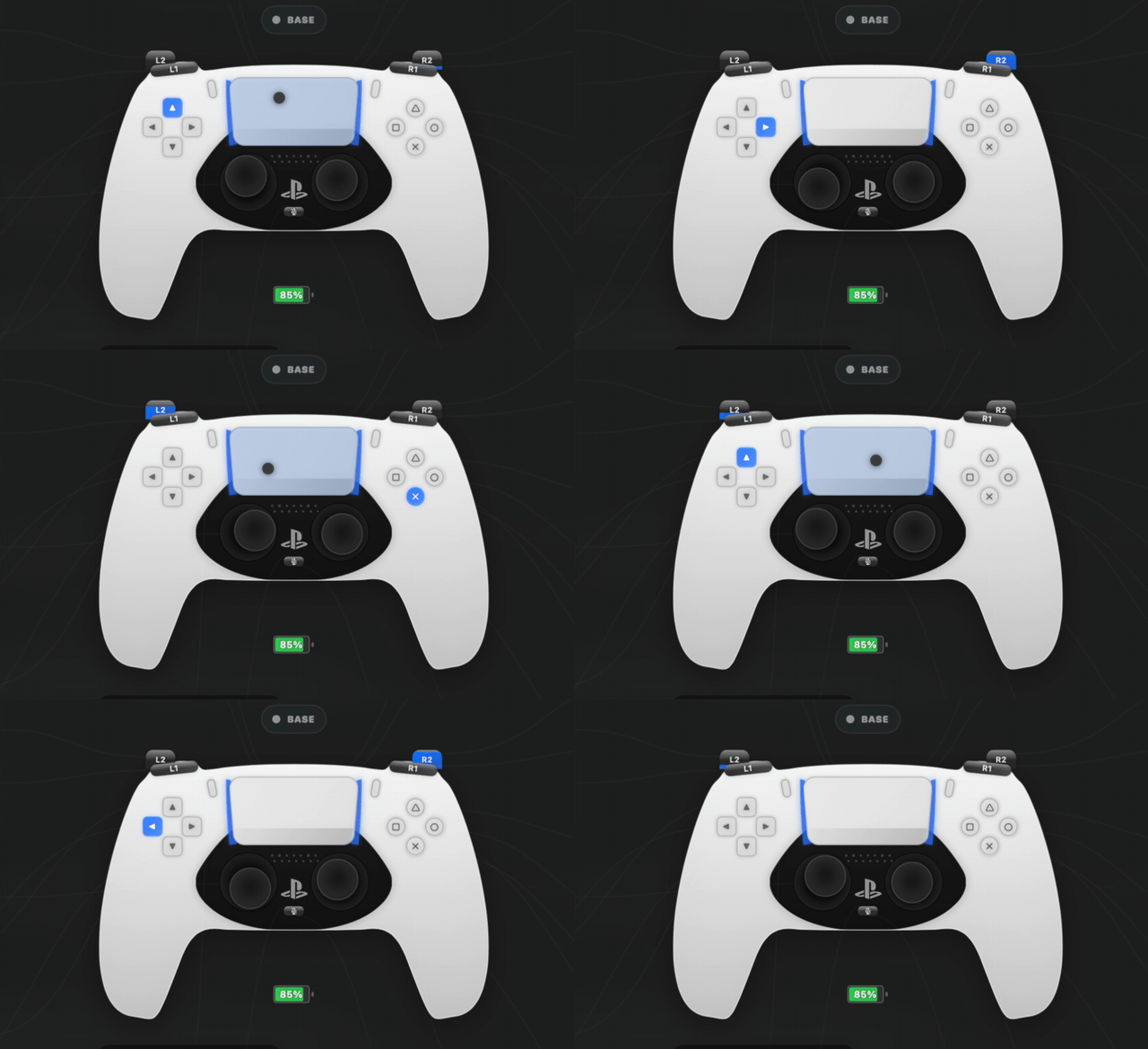
🎮 PlayStation Features
Full support for DualSense, DualSense Edge, and DualShock 4 controllers
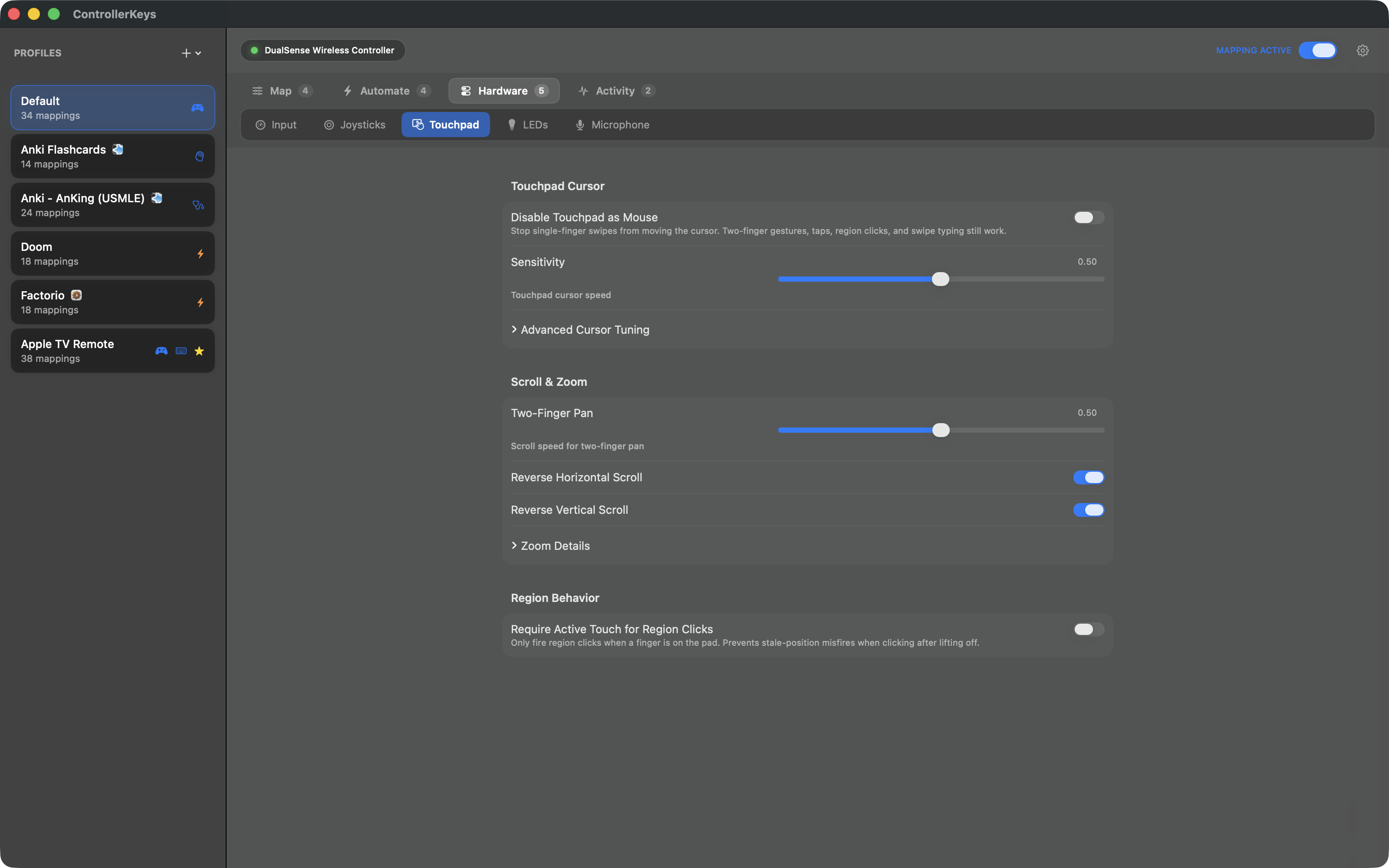
- Full touchpad trackpad support (PS5 and PS4)
- Multi-touch gestures: scroll, zoom, right-click
- Gyroscope aiming and gesture detection
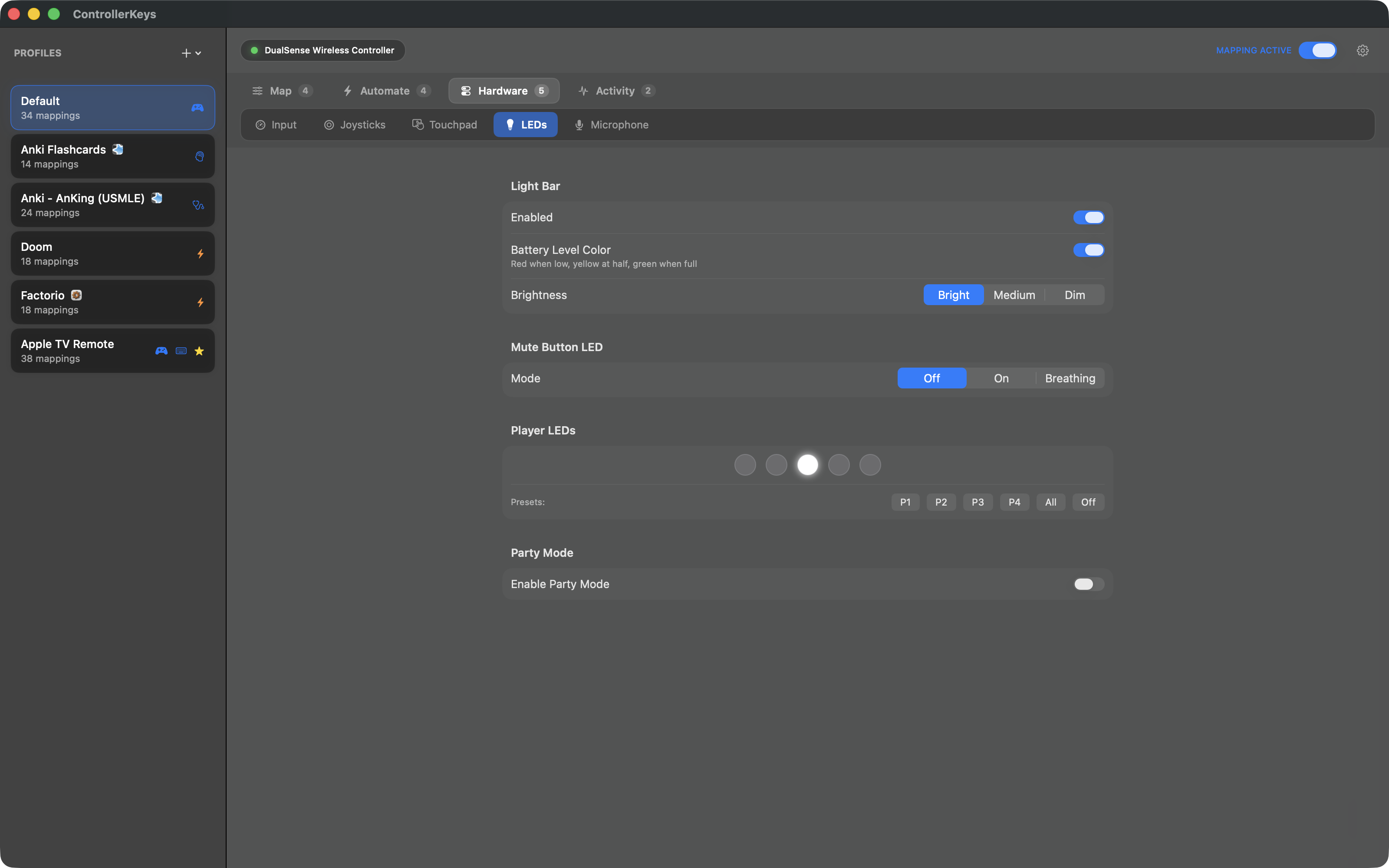
- Customizable LED colors with per-layer color (DualSense + DS4 via USB & Bluetooth)
- Edge function buttons and paddles
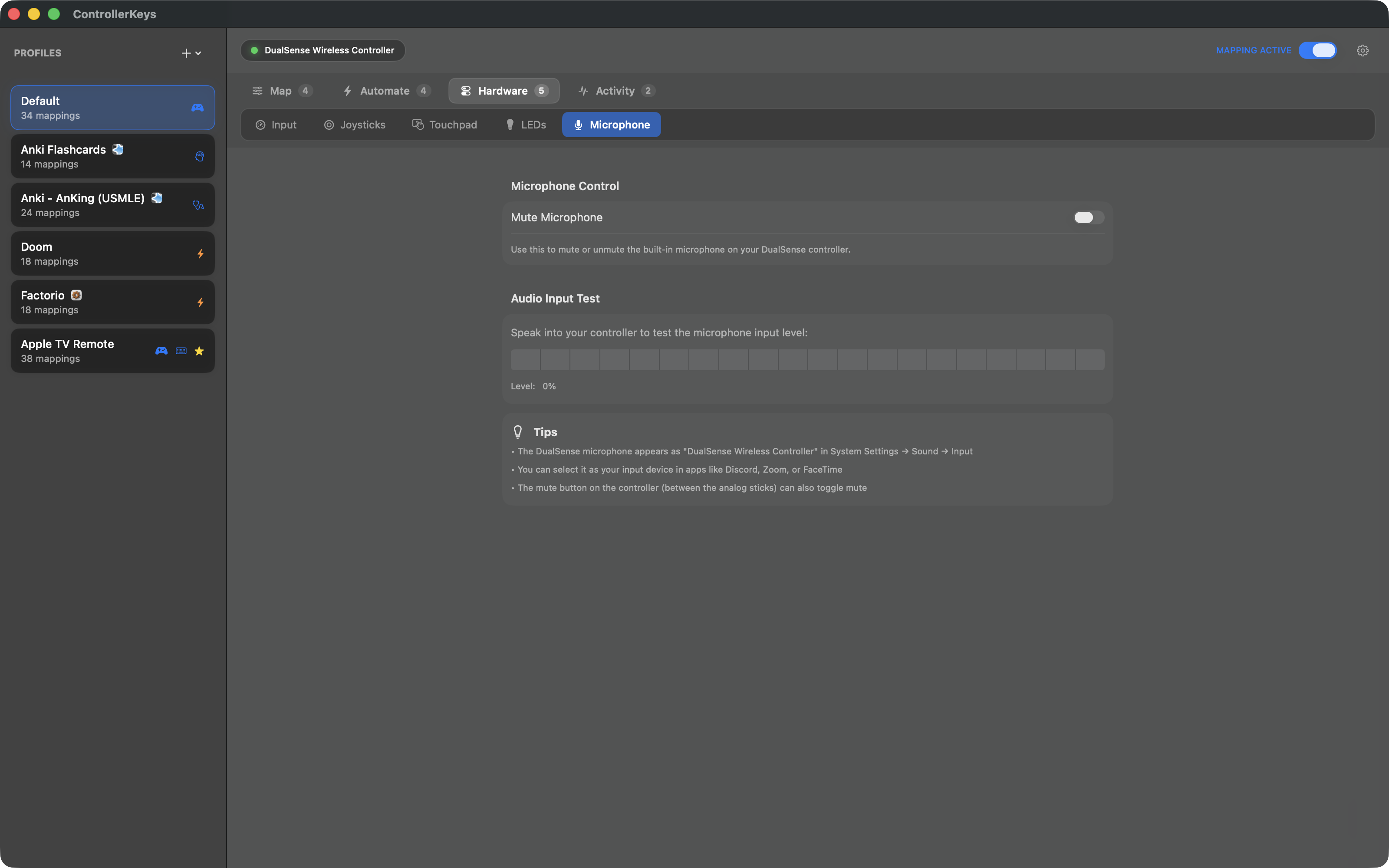
- Microphone mute button mapping
- DualShock 4 with PlayStation-style UI labels
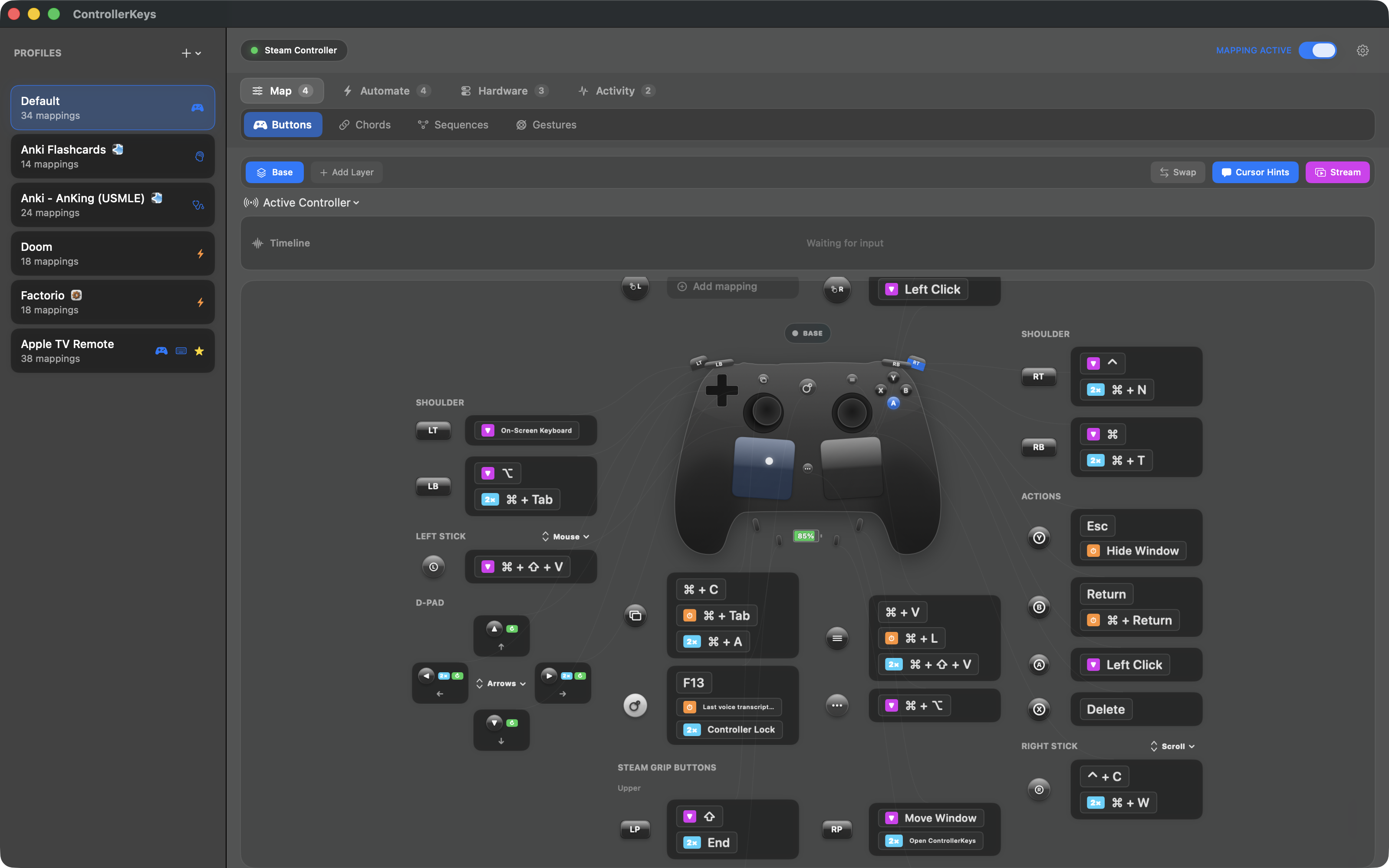
🕹️ Steam Controller
Full support for Valve's Steam Controller over raw HID — Steam doesn't even need to be running
- Detected directly over HID — no Steam client required
- Both square touchpads in Whole Pad or Quadrants mode
- Two-pad pinch-to-zoom and touchpad haptics
- Gyro aiming and gyro gesture mappings
- Grip buttons, triggers, and battery reporting
- Dedicated Steam Controller preview layout with Steam-logo button icons
🎮 Nintendo Joy-Con & Pro Controller
Use a single Joy-Con, paired Joy-Cons (L+R), or the Switch Pro Controller as a Mac input device
- Single Joy-Con, paired L+R Joy-Cons, and Pro Controller
- Correct Nintendo button labels (L/R, ZL/ZR, +/−, Capture, Home)
- Single Joy-Con input via physical input profile enumeration
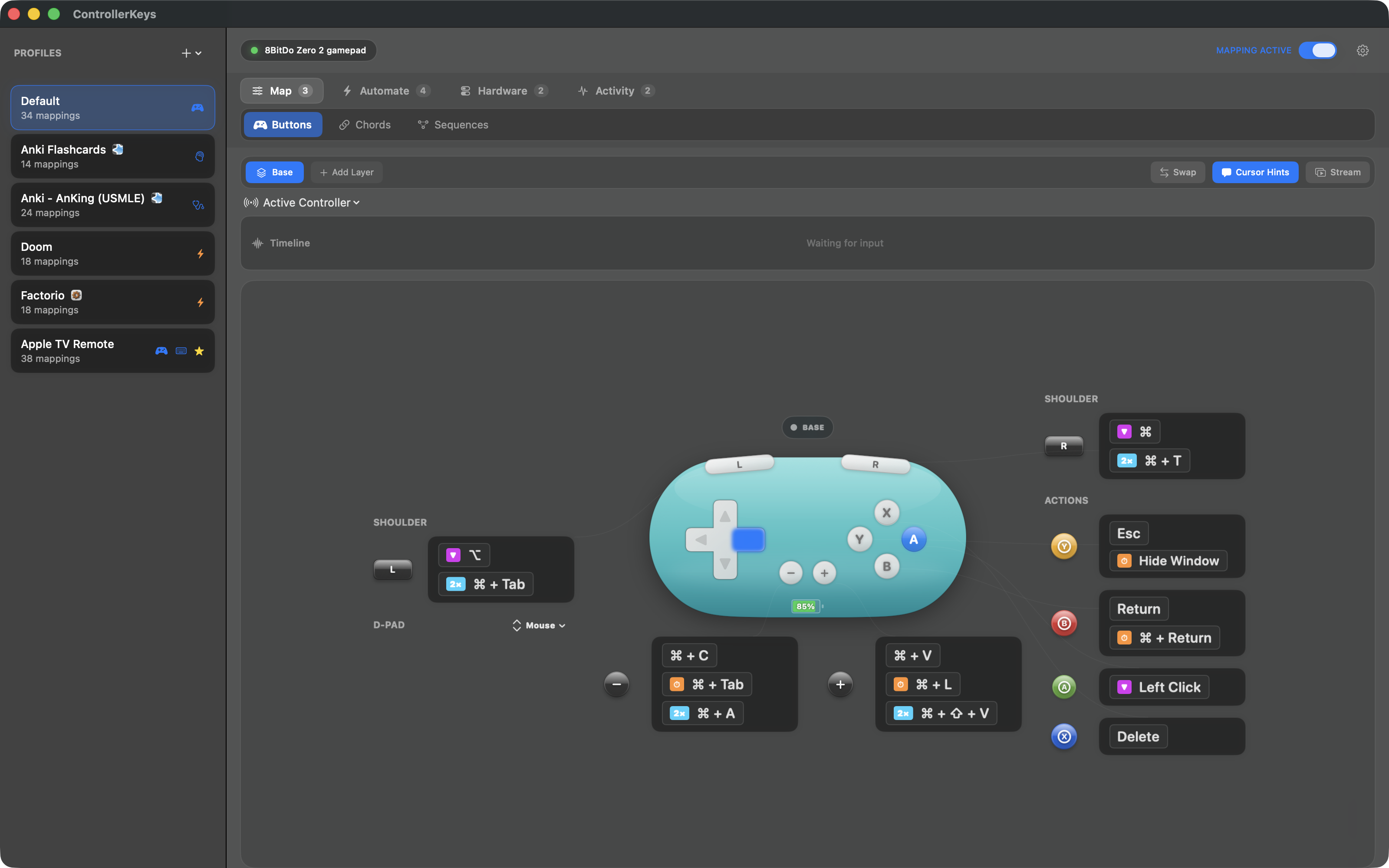
🎮 8BitDo Zero 2 & Micro
Pocket-sized 8BitDo pads, fully mapped — with on-screen layouts drawn just for them
- A pixel-perfect on-screen map of your exact pad
- The d-pad just works — these tiny pads trip up macOS, but ControllerKeys gets it right
- Map the d-pad to arrow keys, WASD, the mouse, or scrolling
- Every button labeled like the real hardware — L/R, L2/R2, and Home
- Just pair and start mapping — no setup needed
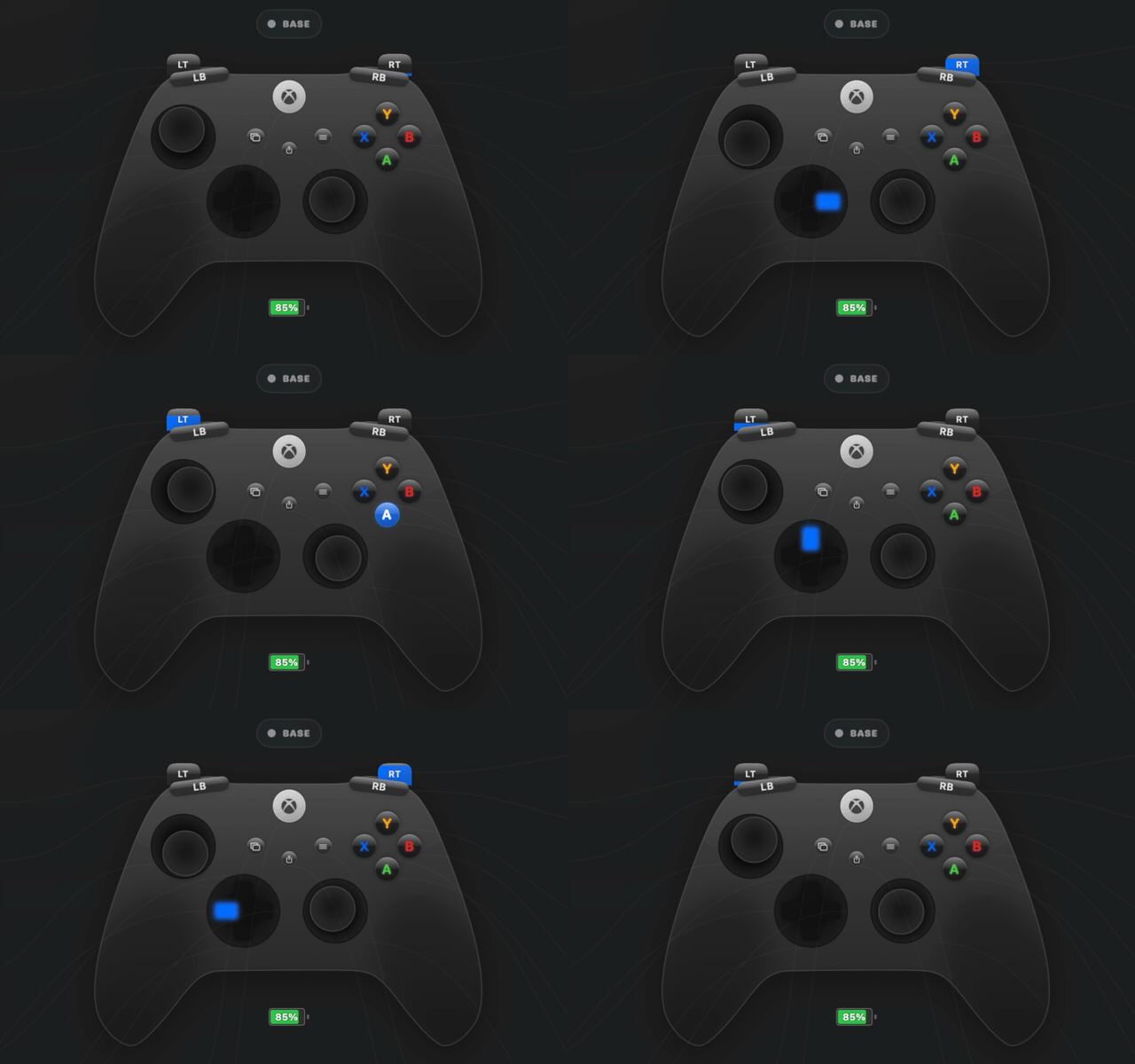
🎮 Xbox Elite Series 2
Full support for Elite-specific hardware including all 4 back paddles
- All 4 back paddles (P1–P4) detected and mappable
- Guide button works over Bluetooth via IOKit HID
- Correct controller name and UI regardless of firmware version
- Works with both Classic BT and BLE firmware variants
⚡ Realtime Low-Latency Mode
Per-profile setting that bypasses the chord-detection window for simple key mappings
- Key-down on press, key-up on release — no timing window
- Chords, double-tap, long-hold, and repeat stay on the standard timing path
- Great for rhythm games, IDE shortcuts, and anywhere keypress latency matters
🔗 Mac-to-Mac Controller Handoff
Universal Control-style relay between two ControllerKeys Macs — push the cursor against a screen edge and your inputs cross over
- Mouse, keyboard, and mapped actions all relay across
- Receiving Mac runs actions against its own active profile
- Local-network only (private/link-local IPv4/IPv6, Tailscale, localhost)
- HMAC-SHA256 authenticated frames; replays and tampering dropped
- Swipe typing and on-screen overlays follow the cursor across
🎯 Custom Stick Directions
Set either stick to Custom mode and each of its 8 directions becomes a real bindable button
- One-click WASD or Arrow Keys presets
- True diagonals — W+D for forward-right works in Factorio, Stardew, etc.
- Directions support long-hold, double-tap, chords, and sequences
- Per-layer stick mode override so each layer can use its own scheme
🕰️ History & Snapshots
Every destructive action is silently snapshotted — restore any prior state from the History tab
- Auto-snapshot before profile delete, import, or restore
- Restore is itself snapshotted, so undo is undoable
- Up to 20 snapshots auto-saved to disk
- Profile-import safety prompt lists every shell/script/webhook surface verbatim before running
🎛️ Touchpad Quadrants
Use the touchpad as a full trackpad, or split it into 4 first-class bindable regions
Multi-touch + Quadrants
Whole-pad or 4-region modes
- Trackpad mode for cursor control on DualSense, DS4, and Steam Controller
- Single-finger tap/click → left-click; two-finger → right-click; two-finger swipe → scroll; pinch → zoom
- Quadrants mode: 4 regions × (touch + click) = 8 bindable buttons
- Quadrants support layers, long-hold, double-tap, and repeat
🎮 300+ Controllers Supported
Xbox, PlayStation, Nintendo, Steam Controller — and 300+ more
- Xbox Series X|S, Elite Series 2, Xbox One/360
- DualSense, DualSense Edge, DualShock 4
- Nintendo Joy-Con (single & paired), Switch Pro Controller
- Valve Steam Controller (no Steam client required)
- 8BitDo, Logitech, PowerA, Hori, and more via SDL database
- Automatic detection — no manual configuration
If macOS sees it as a game controller, ControllerKeys can map it.
📺 Stream Overlay
Show your controller inputs on stream
- Floating overlay showing active button presses
- Capture-ready for OBS window/display capture
- Shows combined held actions
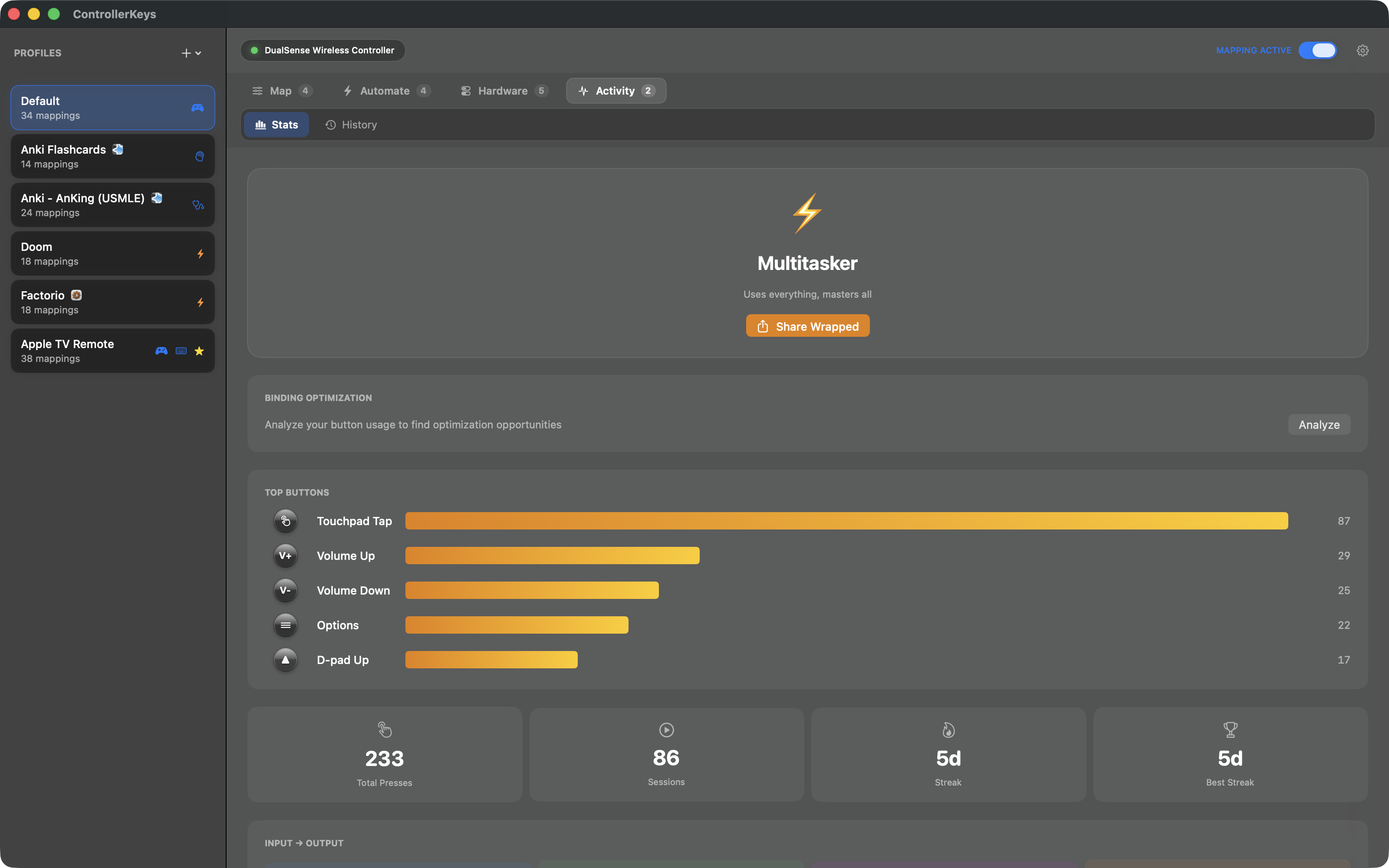
📊 Controller Wrapped
Track your usage stats and share your controller personality
- Track every button press, macro, webhook, and app launch
- Streak tracking and personality typing
- Shareable card for social media
- Detailed breakdown by input type and output action